How to Generate a CSR on Windows Server 2025 with IIS 10
A Step-by-Step Guide to Generating a CSR in Windows Server 2025 – IIS 10
Securing web servers is essential in today’s digital landscape. Generating a Certificate Signing Request (CSR) is the initial step toward obtaining SSL/TLS certificates, vital for encrypted data transmission and user trust. This guide explores the concise process of generating a CSR in Windows Server 2025 with Internet Information Services (IIS) 10.
Other tools can help automate SSL deployment and limit manual operations like these in the future. But every SSL Certificate still needs a CSR.

Prerequisite: Purchase Your SSL Certificate from Comodo
Before proceeding, it’s imperative to procure a Comodo SSL certificate. If you haven’t done so already, you can purchase it at a discounted rate directly from comodosslstore.com.

Comodo Certificates – Enjoy Savings of Up To 72%
Secure a Comodo Certificate for less than $70 per year with exclusive pricing directly from us, ensuring robust online security.
Compare SSL Certificates
Step-by-Step Guide for Installing an SSL Certificate in IIS on Windows Server 2025
Step 1: Accessing Internet Information Services (IIS) Manager
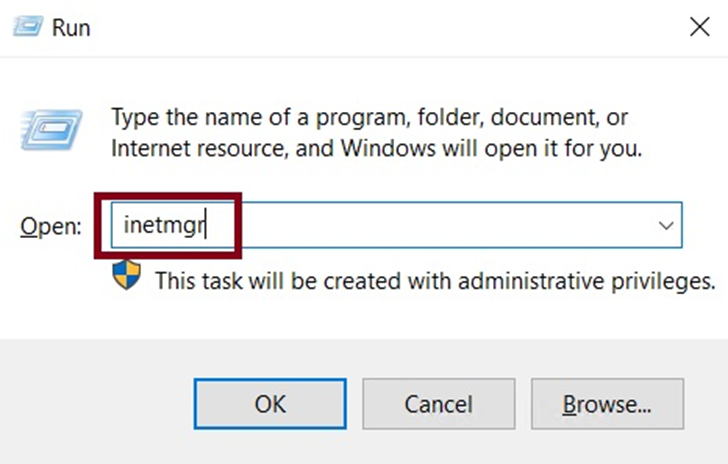
To initiate the CSR generation process, launch Internet Information Services (IIS) Manager on your Windows Server 2025 instance. This can be achieved by executing the ‘inetmgr’ command via the Run dialog (Windows key + R).
Step 2: Navigating to Server Certificates
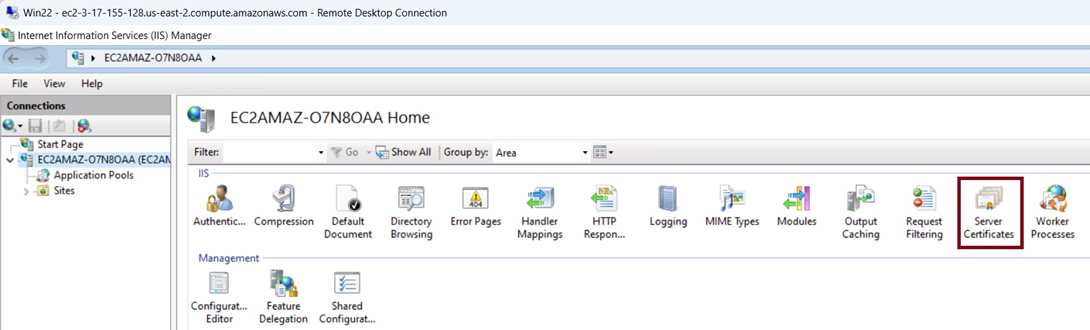
Within IIS Manager, navigate to the ‘Server Certificates’ section, located prominently in the central pane. This interface serves as the hub for managing SSL/TLS certificates on your server.
Step 3: Initiating the Certificate Request Wizard
To generate a CSR in Windows, click on the ‘Create Certificate Request’ option in the Actions pane on the right-hand side. This action triggers the Certificate Request Wizard, guiding you through the CSR generation process.

Step 4: Distinguished Name Properties
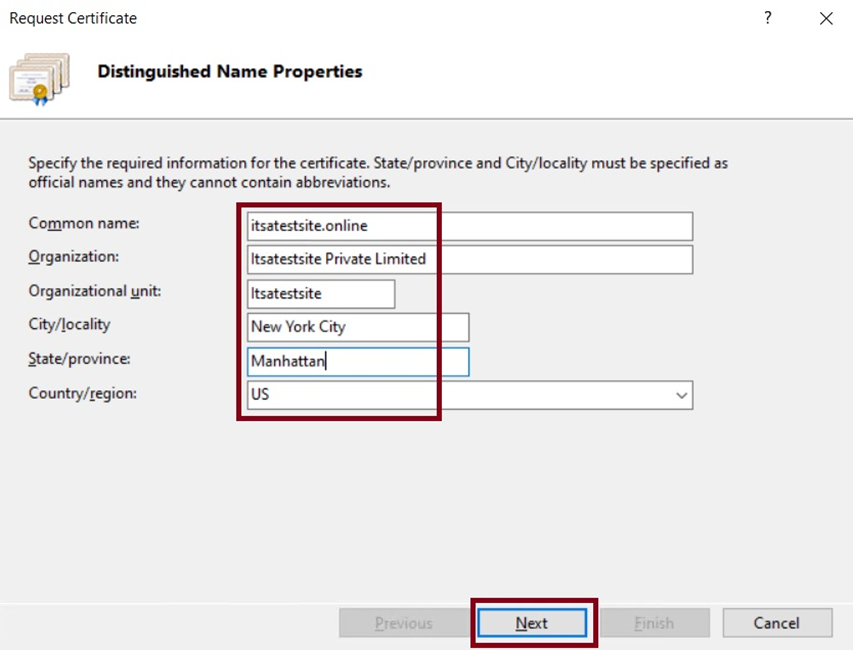
Enter the pertinent organizational and server information in the Distinguished Name Properties dialog. Key details include the Common Name (CN), Organization (O), Organization Unit (OU), City/locality (L), State/province (S), and Country/region (C).
Step 5: Choosing Cryptographic Service Provider (CSP) and Bit Length
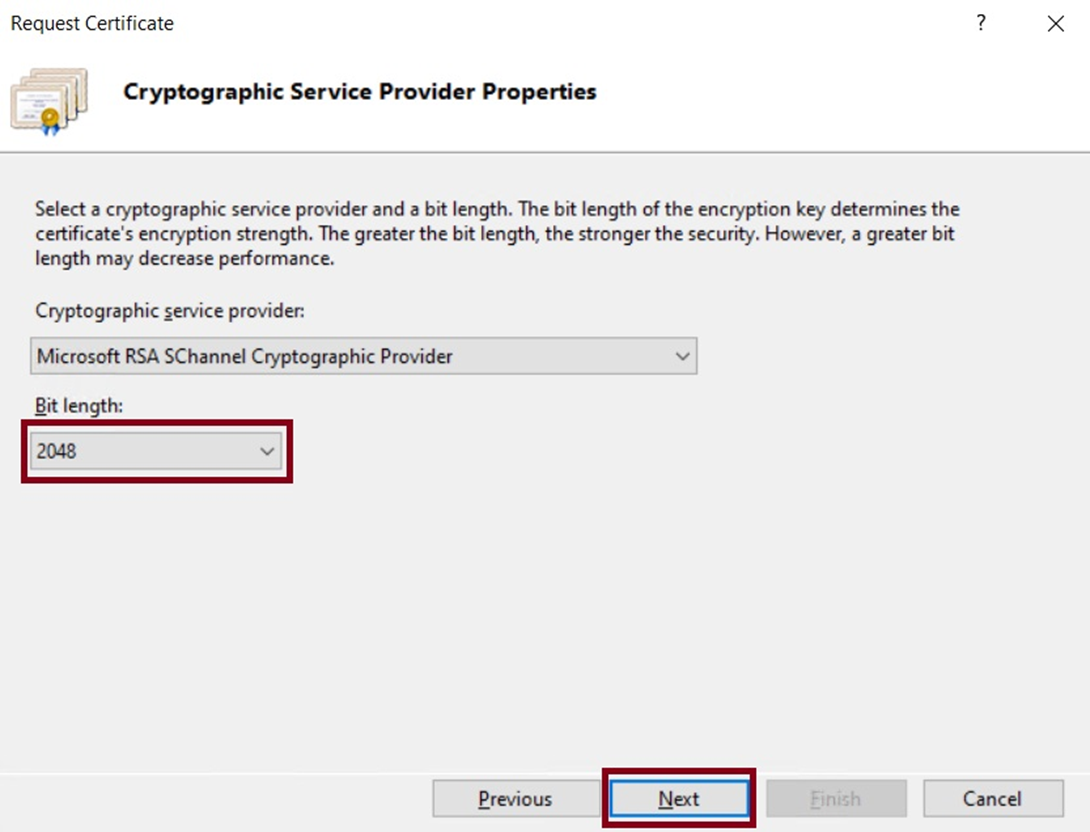
Opt for the appropriate cryptographic service provider (CSP) and bit length for your CSR. It’s recommended to adhere to standard configurations when generating a CSR in Windows, such as the “Microsoft RSA SChannel Cryptographic Provider” with a bit length of 2048.
Step 6: Storing the CSR and Understanding Key Security
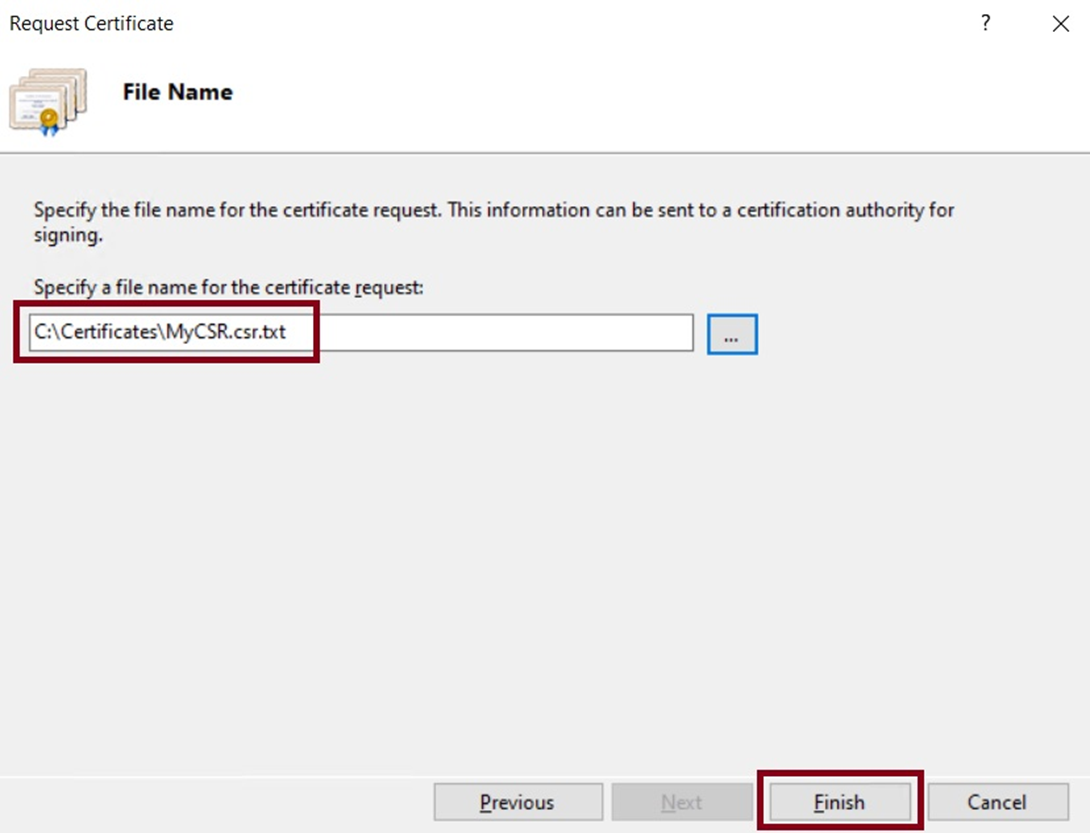
After generating the CSR, consider storing it in a customized directory like ‘C:\Certificates’ for organizational purposes. Since the CSR mainly contains the public key and doesn’t require rigorous security measures for storage, this step primarily focuses on file management. It’s important to note that the private key, which is more sensitive, is typically stored securely by default in the Microsoft Management Console (MMC) on Windows/IIS servers
Step 7: Final Step – Submitting the CSR and Obtaining Your Certificate
After generating the CSR, you’re now prepared to submit it to your selected certificate provider. This will initiate the validation process, resulting in the issuance of your SSL/TLS certificate.
To simplify this process, we recommend purchasing an SSL certificate directly from us. Click the button/link below to view our SSL certificate options and secure your website today.
Automate Windows SSL Certificates
Never worry about expiring SSL certificates again. You can “set it and forget it” when you automate your SSL certificates with Autoinstall SSL.
Try Autoinstall SSL
Explore SSL Certificate Options
Additional Tips
- Keep your SSL/TLS certificates up to date by regularly reviewing and updating them to ensure ongoing security.
- Familiarize yourself with certificate revocation procedures to promptly invalidate certificates if security concerns arise.
- Utilize certificate expiration alerts or monitoring tools to stay proactive in renewing certificates before they expire.
Common Questions
- Q: What Is the Purpose of the Certificate Signing Request (CSR)?
- A: The CSR contains essential information, notably the public key, used by the Certificate Authority (CA) to generate an SSL/TLS certificate. The generated CSR serves as a request from the Windows server to the CA, indicating the desired details for the certificate to be issued.
- Q: Where Can I Find My Certificate in IIS?
- A: After installation, certificates can be accessed and managed within the “Server Certificates” section of Internet Information Services (IIS) Manager in Windows Server 2025.